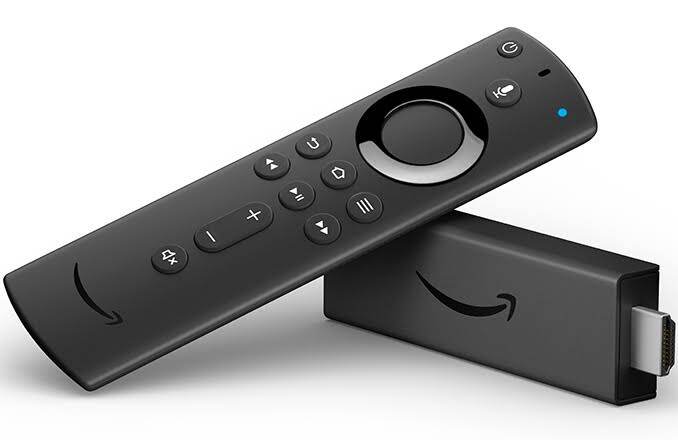
firestick iptv
Getting the most from Firestick IPTV is not only about choosing a suitable streaming service. The settings on the Firestick, television, network, and IPTV application can also influence the overall viewing experience. Adjusting a few important options can make navigation easier, improve picture and audio compatibility, and reduce unnecessary interruptions.
A Firestick is designed to work with a wide range of streaming services, but default settings are not always ideal for every television, internet connection, or viewing preference. We can improve the experience by reviewing settings related to network connectivity, display resolution, audio, application performance, privacy, storage, and device updates.
The goal is not to change every available option. Instead, we should focus on the settings that can provide a meaningful improvement without creating unnecessary complications.
Why Firestick IPTV Settings Matter
IPTV streaming depends on several components working together. The IPTV provider delivers the content, the internet connection transfers the data, the Firestick processes the stream, and the television displays it.
A problem in any part of this chain can affect playback.
For example, a television may support a particular resolution, but the Firestick may be configured differently. Similarly, an IPTV application may offer high-quality video, but an unstable Wi-Fi connection can still cause buffering.
By reviewing the most important Firestick IPTV settings, we can create a more reliable environment for streaming.
1. Check Your Network Settings
A stable internet connection is one of the most important requirements for IPTV.
Open the Firestick’s network settings and verify that the device is connected to the correct Wi-Fi network.
We should pay attention to the strength and stability of the connection rather than focusing only on the advertised internet speed.
Improve Wi-Fi Performance
The Firestick can experience connection problems when it is located far from the router or surrounded by obstacles.
For better performance, we can:
- Keep the router in a central location.
- Reduce physical obstacles between the router and Firestick.
- Avoid unnecessary network congestion.
- Restart the router when connectivity becomes unstable.
- Use a supported wired connection where practical.
- Keep the router firmware updated when updates are available.
A stable connection is particularly important when watching high-resolution live television.
2. Choose the Appropriate Display Resolution
The Firestick’s display settings determine how video is output to the television.
If the television supports high-definition or higher-resolution content, we should configure the Firestick appropriately.
However, choosing the highest possible resolution is not always the best solution. The television and source content must support the selected format.
A practical approach is to use an automatic display option when available, allowing the Firestick and television to negotiate a compatible format.
This can help prevent unnecessary compatibility issues.
3. Enable Automatic Frame Rate Matching When Supported
Some streaming content is produced at different frame rates.
When supported by the Firestick and television, frame rate matching can help the display adapt to the original content.
This can be particularly useful for movies and certain television programming because it can produce more natural motion.
The exact availability of this feature depends on the Fire TV model, application, and television.
If enabling the feature creates compatibility problems, we can test the setting again or return to the previous configuration.
4. Review HDR Settings
Modern televisions may support HDR, or High Dynamic Range.
HDR can improve contrast, brightness, and color when the television and content are compatible.
However, not every IPTV stream is produced in HDR.
If the Firestick and television support HDR, we should use an appropriate automatic setting where available rather than forcing HDR for every type of content.
This allows compatible programming to take advantage of HDR while reducing the risk of displaying SDR content incorrectly.
5. Adjust Audio Settings
Picture quality is only one part of the viewing experience.
The Firestick’s audio settings should match the television, soundbar, or home theater system being used.
If the audio output is configured incorrectly, we may experience problems such as missing sound, incompatible formats, or inconsistent volume.
We should select an audio output that is supported by the connected equipment.
If a soundbar or receiver is connected, its supported audio formats should also be considered.
6. Keep Fire TV Software Updated
Software updates can improve compatibility, security, and performance.
We should periodically check for available Fire TV updates and install them through the device’s official settings.
Keeping the operating system current can also help ensure that supported streaming applications continue to function properly.
An IPTV application that suddenly crashes or behaves differently may sometimes be affected by software compatibility, so keeping both the Firestick and applications updated is an important maintenance step.
7. Update the IPTV Application
The IPTV application itself should also be maintained.
If an official application update is available, installing it can provide bug fixes, performance improvements, security updates, and compatibility enhancements.
We should use the application’s official update method whenever possible.
Avoiding unofficial modified versions is important because unknown software can introduce security and reliability problems.
8. Clear Unnecessary Application Cache
Over time, applications can accumulate temporary data.
If an IPTV application becomes unusually slow or behaves incorrectly, clearing its cache may help.
Cache clearing is different from deleting all application data. We should be careful when choosing the option because clearing application data may require us to sign in or configure the application again.
A useful approach is to clear temporary cache data first when the Firestick provides that option.
9. Free Up Firestick Storage
Limited storage can affect the overall performance of a streaming device.
We should review installed applications and remove programs that are no longer being used.
Keeping unnecessary applications installed provides little benefit and can consume valuable storage.
A cleaner device can be easier to maintain and may respond more quickly.
Before removing an application, we should make sure it is not required by another service.
10. Restart the Firestick Regularly When Needed
A simple restart can resolve temporary software issues.
If applications begin freezing, navigation becomes sluggish, or streaming behaves unusually, restarting the Firestick can clear temporary processes and refresh the system.
We do not need to restart the device constantly. However, it is a useful troubleshooting step when performance suddenly changes.
11. Optimize Application Notifications
Some Fire TV applications may generate notifications that are not relevant to streaming.
Reviewing notification preferences can reduce unnecessary interruptions and make the interface cleaner.
We should keep important system notifications enabled while limiting unnecessary alerts from applications we rarely use.
12. Review Privacy Settings
Privacy settings are also worth reviewing.
Fire TV devices and applications may collect information related to usage, advertising, or diagnostics depending on the services being used.
We should review the available privacy controls and disable optional features we do not want to use, while keeping necessary functionality enabled.
It is also important to read the privacy policy of an IPTV service before providing account or payment information.
13. Check Date and Time Settings
Incorrect date and time settings can occasionally create authentication or application problems.
The Firestick should generally be configured to obtain date and time information automatically when that option is available.
Accurate time settings help maintain normal operation across internet-connected applications and services.
14. Use a Suitable HDMI Connection
HDMI is responsible for transferring video and audio from the Firestick to the television.
If the picture repeatedly disappears, audio fails, or the television displays compatibility warnings, checking the HDMI connection is worthwhile.
We should make sure the Firestick is securely connected and that the selected television input matches the connected HDMI port.
For advanced video formats, the television and HDMI equipment must also support the required specifications.
firestick iptv Subscription
A Firestick IPTV subscription can determine much of the content and streaming quality available through the IPTV application.
Changing Firestick settings can improve the local viewing environment, but settings cannot compensate for an unreliable IPTV provider or unauthorized content source.
When choosing a subscription, we should consider reliability, content licensing, application compatibility, customer support, pricing, video quality, and available features.
Choose a Subscription Based on Reliability
An enormous channel list does not necessarily indicate a high-quality service.
We should look for a provider that clearly explains its services and provides legitimate access to its programming.
Reliable streaming, accurate program information, and consistent application performance are generally more valuable than an impressive channel count alone.
Check Supported Devices
Before purchasing a subscription, we should confirm that the provider supports Fire TV and the particular application or platform we plan to use.
Some services may have different features across devices.
Checking compatibility before subscribing can prevent unnecessary setup problems.
Review Video Quality Options
Different IPTV services may offer different video-quality options.
We should choose a quality level that matches the television and internet connection.
If a high-resolution stream repeatedly buffers while a lower-resolution stream works smoothly, the lower setting may provide a better overall experience.
Consistent playback is usually more enjoyable than constantly interrupted high-resolution video.
Verify Content Licensing
IPTV technology is legitimate, but individual IPTV providers can differ in whether they have the necessary rights to distribute the content they advertise.
We should choose services that provide programming through appropriate licensing arrangements.
We should be cautious about providers that offer premium copyrighted channels at unrealistic prices or provide little information about their business and content rights.
Best Firestick IPTV Settings for Smoother Streaming
There is no universal configuration that works perfectly for every household.
A practical setup should consider the television, Firestick model, internet connection, IPTV application, and audio equipment.
For most users, the following principles provide a good starting point:
- Use a stable network connection.
- Keep Fire TV software updated.
- Keep supported IPTV applications updated.
- Use compatible display settings.
- Enable automatic frame-rate matching when appropriate.
- Configure audio according to connected equipment.
- Keep sufficient device storage available.
- Clear temporary application cache when necessary.
- Remove unused applications.
- Restart the Firestick when performance deteriorates.
- Review privacy and notification settings.
- Use legitimate IPTV services and applications.
Settings That Should Not Be Changed Without a Reason
It can be tempting to change advanced options simply because they are available.
However, we should avoid changing settings without understanding their purpose.
A random configuration change can create new problems instead of solving existing ones.
When troubleshooting, we should change one setting at a time and test the result. If the change does not improve performance, returning to the previous setting makes it easier to identify what happened.
How to Reduce IPTV Buffering Through Settings
Buffering is often blamed on the IPTV application, but the complete streaming environment should be considered.
We can begin by checking the internet connection and Wi-Fi performance.
Next, test multiple IPTV channels.
If every channel buffers, investigate the network and device.
If only one channel repeatedly buffers while other streams work normally, the issue may be associated with the individual stream or provider.
We should also make sure that unnecessary devices are not consuming large amounts of bandwidth.
A stable network combined with appropriate video settings can provide a significantly better experience.
How to Improve Firestick IPTV Picture Quality
Picture quality depends on the source, network, Firestick configuration, television, and application.
To improve the experience, we should make sure the Firestick is outputting a format supported by the television.
We should also verify that the IPTV source actually provides the resolution we expect.
A low-quality source cannot be transformed into genuine high-definition video simply by selecting a higher output resolution on the Firestick.
For the best results, the source quality and display configuration should be compatible.
Firestick IPTV Settings for Better Everyday Use
The best configuration is one that makes everyday viewing simple.
We can organize frequently watched channels into favorites, use the electronic program guide when available, and remove applications that are no longer needed.
Search functionality can also reduce the time spent scrolling through large content libraries.
If an IPTV application supports personalized categories or favorites, configuring them once can make regular viewing much faster.
Final Thoughts
The right Firestick IPTV settings can make a noticeable difference to the overall streaming experience.
Network configuration, display resolution, frame-rate matching, HDR, audio output, software updates, application maintenance, storage management, and privacy settings are all worth reviewing.
However, we should avoid changing settings randomly. The best approach is to identify the specific problem, make a targeted adjustment, and test the result.
A reliable internet connection, properly configured Firestick, compatible IPTV application, and legitimate firestick iptv subscription can work together to provide smoother and more convenient internet-based television.
By keeping the device updated, maintaining adequate storage, optimizing network conditions, and choosing a transparent IPTV provider, we can create a more stable setup without relying on unnecessary modifications.
I can also create an image showing the ideal Firestick IPTV settings for a smoother streaming setup.